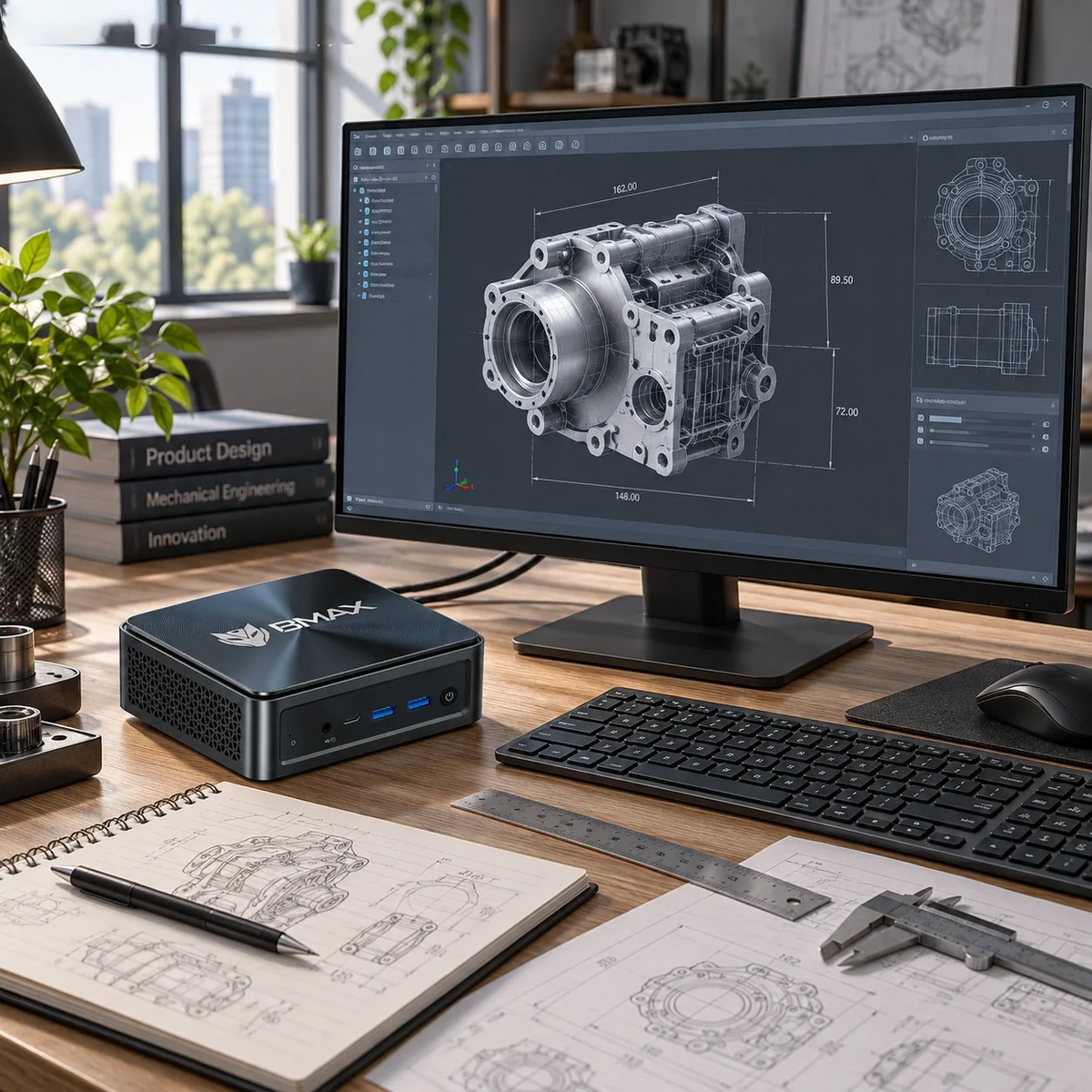
A computer designed for CAD (Computer-Aided Design) or 3D modeling has requirements that are fundamentally different from those of a machine intended for office tasks, web browsing, or conventional entertainment. Workstations dedicated to CAD must be capable of fluidly displaying complex technical vector graphics, calculating elaborate parametric geometries, and processing assemblies composed of hundreds of interconnected parts. When photorealistic 3D rendering is added to the mix, the hardware requirements increase even further.
A modern mini-PC designed for CAD and 3D design is capable of handling many of these demanding tasks, while simultaneously saving up to 80% of desk space. However, not all compact computers are equally well-suited for every type of technical or architectural workflow.
Brief overview of specifications: Minimum and recommended configurations for mini PCs for CAD applications (2026)
- 2D Drafting (AutoCAD, LibreCAD): Processor with a high single-core turbo frequency (4.5 GHz or higher), 16 GB of RAM, integrated graphics, 512 GB NVMe SSD.
- 3D Parametric Modeling (Fusion, SolidWorks): 6 to 8-core processor (turbo frequency of 5.0 GHz or higher), 32 GB of dual-channel DDR5 RAM, modern graphics card (integrated or dedicated), 1 TB NVMe SSD.
- BIM and Large-Scale 3D Rendering (Revit, Blender): Processor with 8 or more cores and a high power draw (high TDP), 32 to 64 GB of RAM, dedicated graphics card (8 GB of VRAM or more) or compatibility with external GPUs (eGPU) via Oculink/USB4, 1 to 2 TB PCIe 4.0 NVMe SSD.
If you are looking for the best mini PC for CAD in 2026, you must first determine which applications you use and the scope of your daily projects. By aligning your hardware configuration with your software requirements, you will avoid unnecessary spending on expensive tower-style workstations; at the same time, you will prevent performance issues—such as those that might arise when creating your first complex assembly—caused by choosing a mini PC that lacks sufficient power.

1. Can a mini PC run CAD and 3D design software?
A mini PC can be configured to effectively handle computer-aided design (CAD) and 3D design software, covering areas such as 2D architectural design, mechanical engineering, and product design, while also enabling the fluid manipulation of complex 3D models.
Performance depends fundamentally on three variables: software architecture, model complexity, and hardware configuration.
Consequently, it is possible to develop everything from 2D architectural blueprints to 3D mechanical models—tasks that entail a significant computational load—allowing for work on projects ranging from multi-level Building Information Modeling (BIM) to mechanical assemblies comprising 500 parts.
To select the right compact workstation, one should distinguish between three fundamental workflows:
- 2D Drawing: Creation and editing of technical drawings, schematics, floor plans, and technical diagrams.
- 3D Modeling: Creation, modification, and rotation of three-dimensional solids, meshes, or parametric assemblies in real time.
- 3D Rendering: Calculation of lighting (via ray tracing), material shaders, shadows, and reflections to generate photorealistic images or animations.
Although these phases overlap throughout the entire project lifecycle, each places different demands on the hardware. A mini PC that can effortlessly handle 2D designs and 3D models—ranging from simple to moderately complex—might require significantly more time to render a complex 4K scene. The crucial question, therefore, is not simply whether a mini PC is suitable for CAD applications, but whether its specific configuration is truly up to the scale of your project.
2. What CAD and 3D applications can a mini PC handle?
Different CAD programs utilize CPU threads, system memory, and graphics processing in different ways. Always tailor your hardware to your primary software ecosystem.
AutoCAD (2D & 3D)
For 2D drawings and simple 3D projects, a modern mini-PC—equipped with a fast single-core CPU, 16 GB of RAM, and an integrated, DirectX 12-compatible graphics unit—represents an ideal, space-saving solution. However, working with large DWG files, complex 3D visual styles (such as "Shaded with Edges" or "Realistic"), or extensive point clouds requires 32 GB of RAM and a more powerful graphics card. The official system requirements specified by Autodesk for AutoCAD 2026 clearly distinguish between a basic configuration for 2D drawings and the recommended configurations for 3D applications.
Autodesk Fusion (formerly Fusion 360) and SolidWorks
Fusion and SolidWorks—frequently used for mechanical design, product development, and the creation of CAM toolpaths—rely heavily on a CPU’s single-thread speed to recalculate parametric histories. While modeling simple components works well even on mid-range, compact systems, large assemblies, generative design, and complex CNC toolpath calculations require 32 GB of RAM and a processor with a high clock frequency.
Blender
Blender encompasses 3D modeling, digital sculpting, animation, and rendering (using Cycles and EEVEE). A mini PC is excellent for learning how to use Blender, as well as for low-poly modeling and rigging. In contrast, high-poly sculpting, the baking of 4K/8K textures, and GPU-accelerated ray tracing require a significant amount of VRAM and high graphics performance.
Revit and BIM Software
Blender encompasses 3D modeling, digital sculpting, animation, and rendering (using Cycles and EEVEE). A mini PC is excellent for learning how to use Blender, as well as for low-poly modeling and rigging. In contrast, high-poly sculpting, the baking of 4K/8K textures, and GPU-accelerated ray tracing require a significant amount of VRAM and high graphics performance.
Pro tip: Never buy a mini PC for CAD applications based solely on the minimum requirements specified by the software vendor. Minimum specifications only guarantee that the application will launch, not that it will run smoothly as file sizes increase.
3. How much CPU power is required for CAD?
In CAD and 3D workflows, the processor (CPU) handles tasks such as geometry regeneration, the processing of parametric model structures, physical simulations, and CPU-based rendering. A key point is that a higher number of CPU cores does not automatically translate into better CAD performance.
Most parametric modeling processes are executed linearly: step B cannot be calculated until step A has been completed. Consequently, viewport responsiveness and model rebuild times depend largely on the clock speed (GHz) of each individual core, as well as the number of instructions per clock cycle (IPC). In contrast, tasks such as finite element analysis (FEA), the generation of CAM toolpaths, and CPU-based rendering can be distributed across multiple cores.
When comparing processors for mini PCs intended for CAD, keep these five factors in mind:
- Single-core boost clock speed: For smooth operation during interactive modeling and element creation, processors with clock speeds of 4.5 GHz to 5.0 GHz or higher are preferable.
- Number of cores and threads: For background simulations, compilation tasks, or multi-threaded rendering, 6 to 8 cores (or more) and 12 to 16 threads (or more) are recommended.
- Sustained TDP (Thermal Design Power): Ensure that the mini PC is capable of maintaining its boost clock speeds during prolonged computational processes without experiencing a significant drop in performance.
- Integrated GPU architecture: Modern mobile processors (such as Intel Core Ultra/i7/i9 or AMD Ryzen 7/9) feature integrated graphics solutions that are significantly more powerful than those of previous generations.
- Software compatibility: Opt for the standard x86-64 architecture to avoid issues with drivers or plug-ins in older engineering software applications.
For a deeper dive into chip architectures, read our comparison on Intel vs. AMD in Mini PCs (2026).
4. How much RAM does a mini PC need for 3D modeling?
Random Access Memory (RAM) determines the amount of geometry and texture data—as well as application states—that your mini PC can keep ready for immediate access. If your project exceeds the available RAM, the system will use the SSD as virtual memory (a swap file), which leads to noticeable stuttering or interruptions within the viewport.
Furthermore, if your mini PC is equipped with an integrated graphics unit (iGPU), the graphics chip will draw from the system's RAM to use as video memory (VRAM). This means that in a system with 16 GB of RAM, only about 12 to 14 GB might actually remain available for Windows and your CAD software.
Use the practical capacity planning guide when configuring your system:
| CAD & 3D Workload | Practical RAM Starting Point | Recommended Configuration Notes |
| Basic 2D CAD & Small Drawings | 16GB | Sufficient for light 2D drafting; allows room for OS and browser tabs. |
| Regular CAD & Moderate 3D Modeling | 16GB – 32GB | 32GB strongly preferred if using integrated graphics (shared VRAM). |
| Large Assemblies & Multitasking | 32GB | Essential for running CAD alongside slicers, spreadsheets, and PDFs. |
| Complex BIM, Heavy Scenes & Production | 64GB+ | Prevents out-of-memory crashes in large Revit models or dense Blender scenes. |
Check the expansion options: Before making a purchase, verify whether the mini PC features SO-DIMM slots (which allow for upgrades) or if the LPDDR5 memory is soldered directly onto the board. If you opt for a mini PC with SO-DIMM slots that support dual-channel operation, you can start with 16 GB or 32 GB of RAM and expand the capacity up to 64 GB as your project requirements grow.
For more details on memory speeds and dual-channel benefits, read How Much RAM Do You Really Need in a Mini PC in 2026?.

5. Integrated graphics vs. dedicated GPU for 3D design
Graphics performance is the key differentiator between modeling for beginners and professional 3D production.
Integrated graphics units (iGPUs) are built directly into the processor and utilize system memory (RAM). Modern iGPUs are surprisingly powerful: they can smoothly handle 2D applications in AutoCAD, assemblies in SolidWorks or Fusion 360 (for entry-level use cases), the slicing process for 3D printing (using software such as Bambu Studio, Cura, or PrusaSlicer), and basic modeling tasks in Blender.
A dedicated GPU (dGPU)—whether built into a high-performance mini-PC or connected via an external interface such as Oculink, USB4, or Thunderbolt—features its own high-speed graphics memory (VRAM). A dedicated GPU offers a significant performance advantage in:
- Fluid frame rates in complex, shaded 3D views.
- Large assemblies with thousands of visible edges and surfaces.
- Real-time architectural walkthroughs (Enscape, Twinmotion, Lumion).
- GPU-accelerated ray tracing (Blender Cycles, V-Ray, Octane).
- High-resolution texture painting (4K/8K) and shader editing with real-time preview.
Note regarding professional-grade drivers: Certain enterprise-level CAD environments (such as demanding implementations of SolidWorks or CATIA) require ISV-certified workstation drivers (for example, for NVIDIA RTX Ada/Quadro or AMD Radeon PRO). If such stability certification is an essential requirement for your work environment, please consult the software vendor’s list of certified hardware before making a purchase.
6. Is SSD storage important for CAD and 3D projects?
Yes. A fast solid-state drive (SSD) immediately reduces boot times, delays when launching software, pauses caused by auto-save processes, and the time required to load files such as assemblies or texture libraries that span several gigabytes.
In 2026, an M.2 NVMe SSD (PCIe 3.0 or PCIe 4.0) is the standard choice for a mini PC intended for CAD work. CAD assemblies access hundreds of individual component files simultaneously; NVMe storage handles these random read and write operations significantly faster than older SATA drives.
Best practices for CAD storage architecture:
- Primary NVMe drive (at least 512 GB to 1 TB): intended for the operating system, CAD applications, and active project files.
- Free space for temporary files: Always keep at least 20%–25% of the storage space on your primary SSD free. CAD applications and rendering engines generate large temporary files during calculations and export processes.
- Additional internal slot or high-speed external storage: Many mini PCs feature a second M.2 slot or a drive bay for 2.5-inch drives; this is ideal for storing material libraries, archived projects, and local backups.
Compare storage speeds in our guide: NVMe vs. SATA SSD for Mini PCs: Which Storage is Best?.
7. Can a mini PC perform 3D rendering?
Yes, for scenes of low to medium complexity; however, when it comes to high-end production rendering, compact hardware reaches its physical limits.
Interactive modeling and final rendering place fundamentally different demands on a system. During modeling, the PC only calculates what is visible in the viewport, at a rate of 30 to 60 frames per second. In contrast, during final rendering, the CPU or GPU operates at full capacity (100%) to calculate millions of light reflections, refractions, and ambient occlusion shadows.
Before choosing a Mini PC for rendering, ask yourself four questions:
- How complex are your scenes? Rendering an industrial design component in Fusion or KeyShot is a quick task, even on a mini PC. In contrast, visualizing an architectural exterior—complete with 3D trees, grass, water, and volumetric lighting—requires significant GPU power.
- How frequently do you perform renders? You might create client previews only occasionally—say, once a week—in which case a process taking 3 to 15 minutes is not an issue. However, if you are rendering dozens of high-resolution images daily, time equals money.
- Does your rendering software require VRAM? With GPU-based rendering engines, insufficient video memory (VRAM) can lead to errors or cause the system to automatically switch to CPU-based rendering (which is much slower), as the scene’s geometry and textures must be loaded into the video memory.
- Can you offload compute-intensive rendering tasks? Many designers use a compact mini PC for day-to-day modeling work, while delegating final rendering—whether for animations or large batches of images—to the cloud or to a dedicated, centralized rendering machine within the office.

8. Cooling, noise levels, and sustained performance
While 2D design may cause brief spikes in CPU activity, tasks such as 3D simulations, file exporting, and rendering require internal components to operate at the limit of their capacity for extended periods.
In a compact chassis, thermal management is the deciding factor for real-world performance. If heat builds up faster than the fans and thermal management systems can dissipate it, the device triggers "thermal throttling"—automatically reducing the clock frequency of the CPU and GPU to protect the components. A processor that achieves a high score in a 60-second benchmark test could end up running 20–30% slower during a 30-minute rendering process if the cooling system is inadequate.
Furthermore, noise levels are an important consideration. A small fan running at maximum speed can be disruptive in a studio or home office—environments where a quiet atmosphere is generally expected.
Factors to consider when evaluating the thermal design of a mini PC:
- Copper heat pipes, dual-fan configurations, or cooling systems based on vapor chamber technology.
- Air intakes on the sides, as well as on the top and bottom, to ensure adequate ventilation.
- Power profiles in the BIOS (allowing you to switch between "Silent," "Balanced," and "Performance" modes).
- Workstation setup: mount the mini PC behind the monitor using a VESA mount, or place it in an open, easily accessible area; never enclose an active CAD workstation inside a drawer that lacks ventilation.
See how top models manage heat in our review of the Best High Performance Mini PCs in 2026.
9. Selecting the appropriate monitor and the ideal connection options
A productive CAD workstation relies heavily on available screen real estate and connectivity options for peripheral devices. Navigating complex node structures, managing layers, working with timelines, and visualizing 3D environments is much easier on a high-resolution 4K monitor—with a diagonal size between 27 and 32 inches—or via a dual-monitor setup (with one screen dedicated to the 3D view and the other to reference drawings and spreadsheets).
Before finalizing the purchase of your mini PC, check the specifications for its input/output (I/O) interfaces:
- Multi-monitor support: Look for HDMI 2.1 ports, DisplayPort 1.4/2.0 ports, and full-featured USB-C ports (including "DisplayPort Alt Mode") to enable the use of two or three 4K monitors simultaneously at 60 Hz or higher.
- High-speed data ports: Look for USB 3.2 Gen 2 (10 Gbps) or USB4 (40 Gbps) ports to support high-performance external SSDs, 3D scanners, or SD card readers.
- Wired network connectivity: A 2.5 GbE or Gigabit Ethernet (RJ45) port is essential if your engineering team works with large CAD files accessed directly from a NAS (Network Attached Storage) system or a corporate server.
- Peripheral ports: Ensure there are enough USB-A ports to connect a high-precision CAD mouse (with high resolution/DPI), a mechanical keyboard, and specialized hardware, such as a 3Dconnexion SpaceMouse.
Need help pairing displays? Check out How to Choose the Best Monitor for a Mini PC in 2026.
10. How to choose a mini PC for your CAD workload (Matrix 2026)
Rather than letting yourself be guided by vague marketing labels like "Pro" or "Ultra," choose your equipment based on the most demanding task you perform each week:
| Your Primary Workload | Hardware Priority Order | Target Spec Baseline (2026) |
| 2D Drafting & Schematics (AutoCAD LT, DraftSight) |
1. Single-Core CPU 2. 16GB RAM 3. Multi-display ports |
Modern 4-to-8 Core CPU (4.3GHz+), 16GB RAM, 512GB NVMe SSD, Integrated GPU. |
| Mechanical CAD & 3D Printing (Fusion, SolidWorks, Onshape) |
1. High Boost Clock CPU 2. 32GB Dual-Channel RAM 3. Fast NVMe SSD |
High-IPC CPU (4.8GHz+ boost), 32GB DDR4/DDR5, 1TB PCIe NVMe SSD, Strong iGPU or dGPU. |
| Complex BIM & Architecture (Revit, ArchiCAD, Vectorworks) |
1. RAM Capacity (32GB–64GB) 2. CPU Single/Multi-Core 3. Fast Storage & LAN |
8+ Core CPU, 32GB–64GB Upgradeable RAM, 1TB+ NVMe SSD, Dedicated GPU recommended for 3D views. |
| 3D Modeling, Sculpting & Texturing (Blender, ZBrush, Rhino) |
1. GPU & Viewport Speed 2. 32GB+ RAM 3. High Core-Count CPU |
8+ Core CPU, 32GB RAM, Strong GPU (or Oculink/USB4 eGPU support), 1TB NVMe SSD. |
| Frequent GPU Rendering (Cycles, V-Ray, Enscape) |
1. Dedicated GPU & VRAM 2. Thermal Cooling 3. Sustained Power |
Mini Workstation with discrete GPU (8GB+ VRAM) or eGPU dock, 32GB+ RAM, high-airflow chassis. |
Always consult the official system requirements corresponding to the specific release year of your software, and opt for Mini PCs that feature accessible slots for SO-DIMM RAM and M.2 SSDs, ensuring your workstation can evolve alongside your workload.For a complete overview of form factors and specs, visit our Mini PC Buying Guide 2026.
Verdict: Is a mini PC the right choice for CAD and 3D design in 2026?
A mini PC is an excellent, cost-effective solution for engineers, architects, industrial designers, 3D printing enthusiasts, and students in STEM (science, technology, engineering, and mathematics) fields who require a quiet, space-saving workstation for 2D drafting, parametric 3D modeling, and light-to-moderate rendering tasks.
While large-scale visual effects (VFX) studios—and workflows that demand intensive GPU-based rendering—still benefit from tower-style PCs equipped with dual graphics cards, the vast majority of routine computer-aided design (CAD) and modeling tasks no longer require a bulky unit sitting under a desk.
Ready to design your compact CAD workstation?
Explore the BMAX range of mini PCs to compare various compact computer options and check the technical specifications of each model, keeping your specific needs in mind before making a decision.
Frequently Asked Questions (FAQ)
Can a mini PC run AutoCAD smoothly?
Yes. A modern mini PC—equipped with a high-frequency processor, 16 to 32 GB of RAM, an NVMe SSD, and a graphics card compatible with DirectX 12—can handle 2D AutoCAD work and moderately complex 3D design tasks with complete fluidity. For projects involving complex 3D designs or point clouds, it is advisable to choose a model with 32 GB of RAM that offers strong graphics performance.
Is 16 GB of RAM enough for CAD in 2026?
16 GB of RAM is sufficient for 2D design and basic 3D part modeling. However, since mini PCs with integrated graphics use system RAM as video memory, 32 GB is the ideal amount for working smoothly with 3D assemblies, BIM software, and multitasking, without any slowdowns.
Can a mini PC run Blender for 3D modeling and rendering?
Yes. A suitable Mini PC allows for smooth workflows when modeling in Blender’s 3D viewport, applying modifiers, unwrapping UV coordinates, and performing basic rendering with EEVEE. However, complex scenes with high polygon counts—as well as GPU-accelerated ray tracing in Cycles—require a Mini PC equipped with a dedicated GPU, a connection to an external GPU (eGPU), or, alternatively, a degree of patience, as render times will be longer when relying on the CPU.
Do I need a dedicated graphics processor (GPU) for 3D modeling on a mini PC?
Not always. Modern integrated graphics chips (such as the Intel Iris Xe/Arc series or the AMD Radeon 600M/700M/800M series) can easily handle parametric 3D modeling tasks—ranging from beginner to intermediate levels—in programs like Fusion, Onshape, and TinkerCAD. A dedicated graphics card is primarily necessary when working with large, complex assemblies, creating real-time architectural visualizations, or performing GPU-accelerated rendering.
Is a mini PC suitable for professional CAD work?
Yes, for 2D drafting, mechanical part design, CAM programming, and project review. For enterprise workflows involving large-scale assemblies, complex simulations (such as CFD/FEA), or strict driver certification requirements from independent software vendors (ISVs), please verify your organization’s hardware validation standards before making a purchase.
Is a mini PC preferable to a tower-style workstation for 3D design?
Neither solution is universally superior; they address different needs. A mini PC consumes less power, operates more quietly, is easy to transport, and saves up to 80% of desk space, all while handling everyday 2D/3D modeling tasks with ease. On the other hand, a tower-style desktop computer—though bulkier and noisier—provides the necessary space to accommodate full-sized graphics cards (300 W or more) and a high-performance cooling system, making it ideal for continuous 3D rendering.
What should I prioritize when upgrading a mini PC to achieve better 3D performance?
Throughout the process, identify the point of logical conflict using task management:
- Increase your RAM—up to 32 GB or 64 GB—if your usage rate exceeds 85% and the system slows down when switching between windows or opening large assemblies.
- Replace your SSD (with a higher-capacity PCIe NVMe model) if file loading takes too long or if your primary drive is more than 85% full.
- (Note: Since the processors in mini PCs are soldered to the motherboard, choose the best processor possible within your budget from the start, and prioritize models that include slots for expanding RAM and the SSD.)