Buying a Mini PC is a smart way to save desk space and get serious computing power without a bulky, noisy tower. However, unlike a laptop, a Mini PC doesn't come with a built-in screen.
Your monitor is the window to everything you do—whether you're drafting financial spreadsheets, writing code, editing high-res photos, or streaming 4K movies. Pair your compact computer with the wrong monitor, and you'll quickly run into annoying resolution mismatches, laggy refresh rates, or frustrating port incompatibilities.
So, how do you choose the best monitor for a Mini PC in 2026?
This comprehensive guide breaks down everything you need to know about screen size, resolution, panel tech, and crucial port connections.

1. Match the Ports: HDMI, DisplayPort, or USB-C?
Before looking at picture quality, you must check hardware compatibility. Your Mini PC and your monitor need to speak the exact same language.
-
HDMI (HDMI 2.0 or 2.1): The most common standard. Almost every Mini PC and monitor features HDMI. It handles both high-definition video and audio effortlessly. If you want smooth 4K video at 60Hz or higher, look for HDMI 2.0 or newer.
-
DisplayPort (DP 1.4+): Extremely popular among professionals, programmers, and multi-monitor workstations. DisplayPort offers higher data bandwidth, making it ideal for high refresh rates and clean multi-screen setups.
-
USB-C (with DP Alt Mode): Some advanced Mini PCs feature full-function USB-C ports that can transmit video, data, and power over a single cable. If your monitor supports USB-C power delivery, it can dramatically reduce desk cable clutter.
(Before purchasing any gear, it's always smart to audit your computer's native specs using our comprehensive 2026 Mini PC Buying Guide).

2. Resolution: 1080p, 1440p (QHD), or 4K?
Resolution dictates how sharp your text looks and how much desktop workspace you have to manage applications.
-
1080p Full HD (1920 x 1080):
-
Best for: Budget setups, basic office work, students, and smaller desks.
-
Why choose it: It’s affordable, easy for entry-level Mini PC integrated graphics to drive, and text remains comfortably readable on screens up to 24 inches.
-
-
1440p QHD (2560 x 1440):
-
Best for: Programmers, home offices, and general multitasking.
-
Why choose it: Widely considered the "sweet spot" for 27-inch monitors. It gives you significantly more screen real estate than 1080p without demanding the heavy GPU power of a 4K display.
-
-
4K Ultra HD (3840 x 2160):
-
Best for: Content creators, media enthusiasts, and professionals working with high-res photos or video.
-
Why choose it: Delivers razor-sharp text and stunning clarity. Just make sure your Mini PC supports 4K output at 60Hz.
-
3. Screen Size and Ergonomics
The physical size of your monitor should match your room, desk depth, and eyesight.
-
22 to 24 Inches: Perfect for tight spaces, small student desks, or multi-monitor configurations where you don't want massive physical screens.
-
27 Inches: The universal standard for modern productivity. It gives you enough room to comfortably snap two full windows side-by-side using Windows Snap Assist.
-
32 Inches and Above: Great for media lovers and professionals who need massive screen workspace, though it requires a deeper desk so you aren't sitting too close.
Look for VESA Mount Compatibility
Because you're using a Mini PC, look for a monitor that supports VESA mounting (75x75mm or 100x100mm). This allows you to mount the monitor on a desk arm—or even better, mount your Mini PC directly to the back of the monitor for a 100% hidden, cable-free computer setup.
4. Panel Types: IPS vs. VA vs. OLED
When shopping for displays, you’ll encounter different panel technologies. For almost all Mini PC users, IPS (In-Plane Switching) panels are the gold standard. They offer brilliant color accuracy, sharp viewing angles, and don't wash out when viewed from the side.
-
IPS: Best for general office work, design, coding, and media consumption.
-
VA: Offers deeper blacks and higher contrast, making it great for dark rooms, though colors can shift slightly at sharp angles.
-
OLED: Stunning contrast and vibrant colors, but typically much more expensive; ideal for high-end creative work or entertainment.

Planning for a Dual-Monitor Setup?
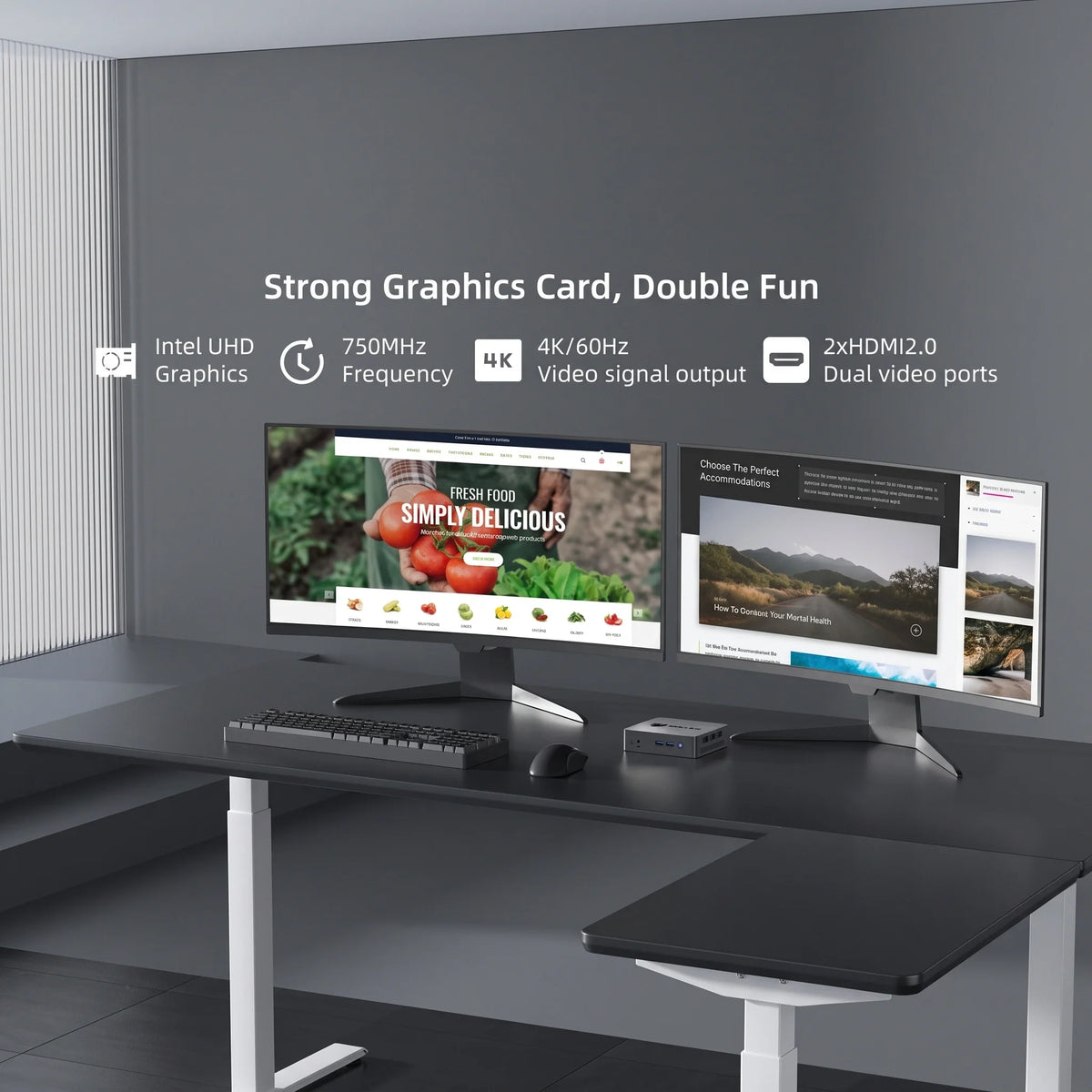
Many professionals pair their Mini PC with two monitors to supercharge their daily productivity. If you're planning to run a multi-screen workspace, make sure your chosen monitor has thin bezels (borders) to make the transition between screens seamless.
(Once you pick your displays, follow our step-by-step tutorial on How to Set Up Dual Monitors on a Windows 11 Mini PC to configure your workstation like a pro).
Conclusion
A Mini PC is only as good as the display you plug it into. By matching your compact computer with a monitor that features the right ports, a comfortable resolution (like 1440p or 4K), and an ergonomic IPS panel, you can build a powerhouse workstation that looks incredible and feels effortless to use.
Ready to find the ideal compact computer to match your dream desk setup? Explore the BMAX Mini PC collection to discover high-performance, multi-display-capable Mini PCs built for modern workflows.
Frequently Asked Questions (FAQ)
Q: Can any monitor work with a Mini PC?
A: Yes, as long as your Mini PC and monitor share a compatible video port (such as HDMI or DisplayPort). If they have different ports (e.g., Mini PC has DisplayPort and monitor only has HDMI), you can easily use a simple cable adapter.
Q: Is 4K necessary for a Mini PC monitor?
A: Not necessarily. While 4K offers stunning clarity, 1440p (QHD) or 1080p (FHD) monitors are often more practical, easier on integrated graphics performance, and much more affordable for daily office and student use.
Q: Can I connect two monitors to a Mini PC?
A: Absolutely! Most modern Mini PCs feature at least two video output ports (like HDMI + DisplayPort or dual HDMI), allowing you to run a dual-monitor setup seamlessly.
Q: What is VESA mounting, and why does it matter for Mini PCs?
A: VESA is a standard hole pattern on the back of monitors. It matters because many Mini PCs come with brackets that let you mount the computer directly onto the back of the monitor, completely hiding the PC and clearing up your desk space.
Q: Do I need a high refresh rate monitor for a Mini PC?
A: If you only use the Mini PC for office work, web browsing, and streaming, a standard 60Hz monitor is completely fine. However, if you enjoy casual gaming or want ultra-smooth mouse cursor movement, a 100Hz or 1440p high-refresh-rate monitor provides a noticeably slicker experience.