Video editing has traditionally meant using a large desktop computer with plenty of storage, a powerful graphics card and enough cooling for long rendering sessions.
That is no longer the only option.
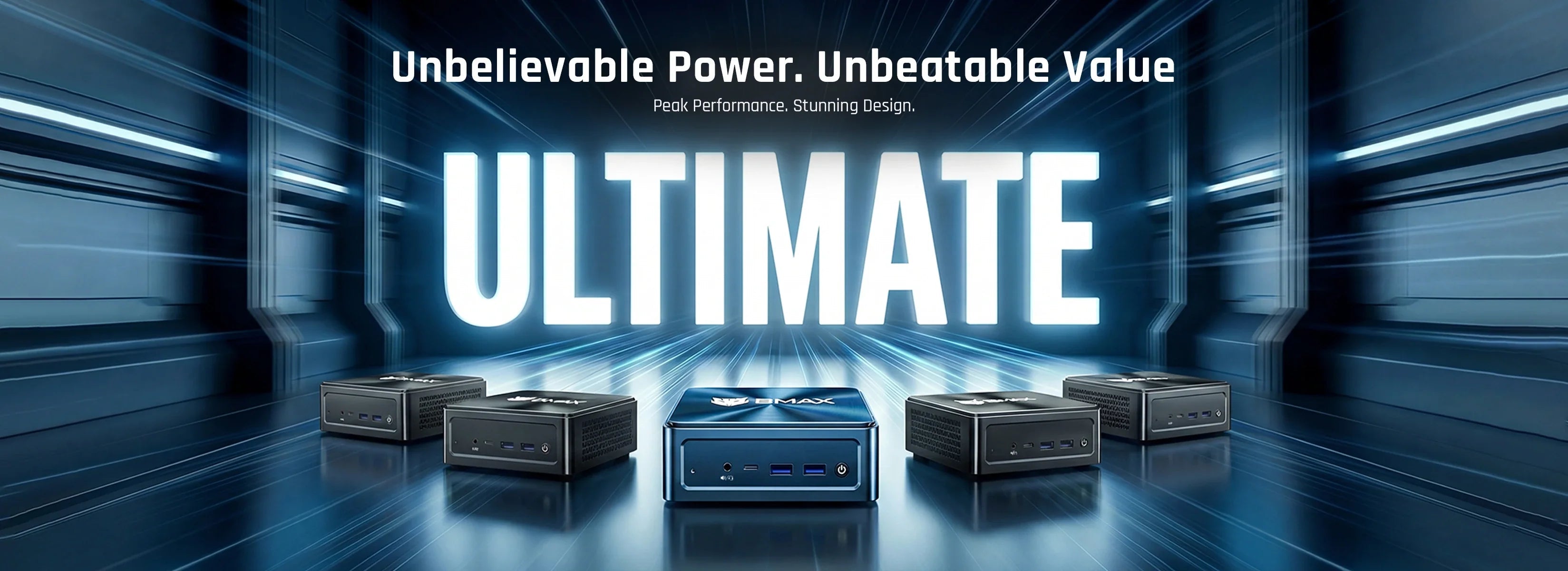
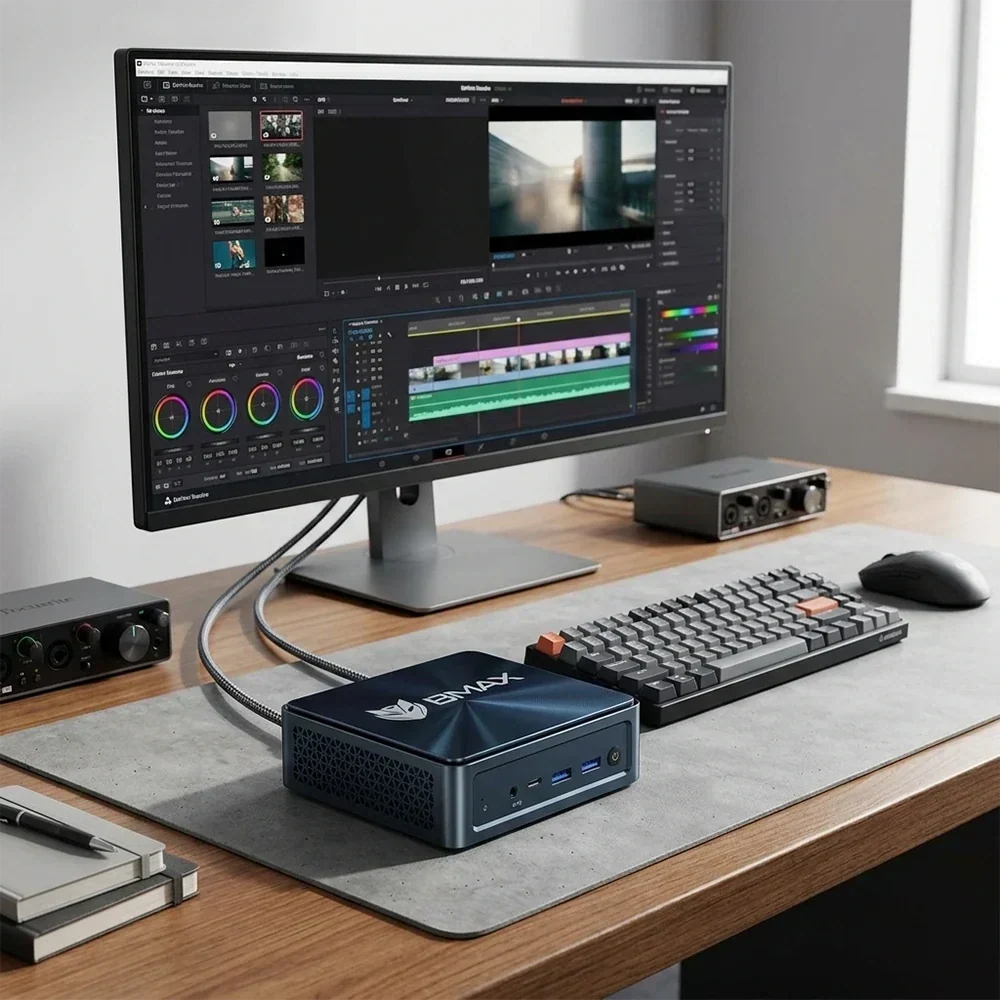
Modern Mini PCs can provide enough processing power for many video editing workflows while taking up considerably less space than a traditional desktop. For YouTubers, freelancers, students, small businesses and content creators, a compact computer can be a practical foundation for an editing workstation.
But choosing a Mini PC for video editing is different from choosing one for web browsing or office work.
A system that feels fast when opening documents may struggle when scrubbing through 4K footage, applying effects or exporting a long project.
So, what should you look for when choosing the best Mini PC for video editing in 2026?

What Makes a Mini PC Good for Video Editing?
Video editing combines several different workloads.
The CPU handles many timeline operations, media processing and encoding tasks. The GPU can accelerate supported effects, color processing and other graphics workloads. RAM determines how much project data and how many applications can remain available, while the SSD affects project loading, file transfers and cache operations.
Cooling also matters.
Unlike browsing or office work, video rendering can keep a processor under sustained load for a long period.
That means a good video editing Mini PC should have balanced hardware rather than relying on one impressive specification.
Is a Mini PC Good Enough for 4K Video Editing?
Yes, but the answer depends on the type of 4K project.
Editing a simple 4K YouTube video with cuts and basic transitions is very different from editing multiple streams of high-bitrate footage with color grading, noise reduction and complex effects.
For lighter 4K projects, a modern multi-core processor, 16GB or more RAM and a fast SSD can provide a practical starting point.
For demanding 4K workflows, 32GB RAM and stronger graphics performance become increasingly useful.
Proxy media can also make a difference. Instead of processing the original full-resolution footage throughout the entire editing process, you can work with lower-resolution proxy files and switch back to the original media during export.
This can make demanding projects much more manageable on a compact computer.
CPU: What Processor Do You Need for Video Editing?
The CPU remains one of the most important components in a video editing Mini PC.
Processor performance affects timeline responsiveness, media processing, encoding and many software operations.
For basic YouTube videos, tutorials, product demonstrations and social media content, a modern mid-range processor can be enough.
More demanding projects benefit from higher sustained CPU performance, especially when exporting long videos or processing multiple layers.
Core count is useful, but it should not be considered alone. Processor architecture, sustained clock behavior and thermal performance can all influence the real-world experience.
This is particularly relevant in a Mini PC because compact systems have less physical space for cooling than large desktop towers.
Do You Need a Powerful GPU for Video Editing?
Not every editor needs a dedicated high-end graphics card.
Integrated graphics can be sufficient for lighter editing workflows, particularly when working with moderate effects and optimized media.
However, GPU performance becomes more important for demanding effects and applications such as DaVinci Resolve.
A stronger GPU can help with:
- GPU-accelerated effects
- Color grading
- Multiple video layers
- High-resolution timelines
- Motion graphics
- Complex transitions
- Noise reduction
If your workflow mainly consists of cutting footage and producing straightforward YouTube videos, investing heavily in GPU performance may not be necessary.
For advanced color grading or effects-heavy projects, graphics capability deserves more attention.

How Much RAM Do You Need for Video Editing?
RAM determines how much working data your Mini PC can comfortably handle.
For lighter projects, 16GB can be a practical starting point.
For regular 4K editing and multitasking, 32GB provides considerably more room.
A simple guideline is:
| RAM | Typical Video Editing Use |
|---|---|
| 8GB | Very light editing |
| 16GB | 1080p, YouTube and general content |
| 32GB | Regular 4K editing and multitasking |
| 64GB+ | Large professional projects and specialized workloads |
These are practical guidelines rather than strict requirements.
Your actual needs depend on the editing software, footage, codecs, project size and other applications running at the same time.
For example, someone editing 4K footage while using Photoshop, a browser and audio software can benefit from more RAM than someone working only inside a basic video editor.
For a deeper explanation of Mini PC memory requirements, see How Much RAM Do You Really Need in a Mini PC in 2026? 8GB vs 16GB vs 32GB.
How Much SSD Storage Do You Need for Video Editing?
Video projects consume storage quickly.
A single project can include original footage, proxy files, previews, audio, project files, cache files and final exports.
A 256GB SSD can become restrictive very quickly.
For many creators, 512GB is a more practical starting point. If you regularly work with 4K footage, 1TB or more provides considerably more room.
SSD speed matters as well.
NVMe SSDs generally provide much higher throughput than SATA SSDs, which can be useful when transferring large video files and handling project or cache data.
However, SSD speed is only one part of editing performance.
CPU performance, GPU acceleration, RAM, codecs and software optimization all contribute to the overall experience.
For a more detailed storage comparison, see NVMe vs. SATA SSD for Mini PCs: Which Storage is Best?.

Premiere Pro vs. DaVinci Resolve: Does the Software Matter?
Yes.
Different editing applications can place different demands on your hardware.
Mini PC for Adobe Premiere Pro
Adobe Premiere Pro is widely used for YouTube videos, commercial content, tutorials, social media videos and professional production.
A Mini PC for Premiere Pro should ideally have:
- A modern multi-core CPU
- At least 16GB RAM for lighter workflows
- 32GB for more demanding projects
- Fast NVMe storage
- Compatible hardware acceleration
- Sufficient graphics performance for the effects you use
For straightforward editing, an extremely powerful GPU may not be necessary.
For complex 4K projects, additional graphics capability becomes more useful.
Mini PC for DaVinci Resolve
DaVinci Resolve can place greater emphasis on GPU performance in many demanding workflows.
If Resolve is your primary editing application, pay particular attention to graphics capability.
This becomes especially relevant for color grading, Fusion effects and other GPU-intensive tasks.
RAM and CPU performance remain important, but the ideal balance can differ from a basic cutting workflow.
1080p vs. 4K: Which Mini PC Should You Choose?
Your target resolution is one of the easiest ways to narrow down your hardware requirements.
For 1080p YouTube videos and social media content, you have considerably more flexibility.
A modern Mini PC with 16GB RAM and fast SSD storage can handle many everyday editing workflows.
4K editing increases the demands on the system.
For regular 4K production, a configuration around 32GB RAM, 1TB-class NVMe storage and stronger graphics performance is a sensible direction.
But resolution alone does not determine the workload.
A compressed 4K file can behave very differently from professional RAW or high-bitrate footage.
Camera, codec, frame rate, effects and project structure all influence the actual hardware requirements.
Why Cooling Matters During Long Video Exports
Video editing is not only about peak performance.
A long export can keep the CPU under load for an extended period, making sustained performance important.
When evaluating a Mini PC for video editing, consider:
- Cooling architecture
- Ventilation
- Fan configuration
- Sustained performance
- Chassis design
- Expected workload duration
BMAX uses its Space Capsule Cooling System on selected Mini PC models as part of its compact thermal design approach.
For more information about Mini PC noise and thermal behavior, see Are Mini PCs Loud? Noise Levels and Cooling in Compact Computers Explained.
What Monitor Should You Use for Video Editing?
A good monitor is an important part of the editing workstation.
A larger display gives you more room for the timeline, media browser, preview window and editing controls.
Resolution also matters.
For 4K video production, a 4K display can provide a more detailed view of your footage and editing interface.
Color accuracy can also become important if you perform color correction or grading.
Before buying a monitor, check the Mini PC's available display outputs and supported resolutions.
For more guidance, see How to Choose the Best Monitor for a Mini PC in 2026: Size, Resolution & Ports.
Can a Mini PC Support a Dual-Monitor Editing Setup?
Yes, provided the Mini PC supports the required display outputs and resolutions.
A dual-monitor setup can be useful for video editing.
One display can contain the timeline and editing controls while the second display shows the video preview, media browser or reference material.
However, display support varies between Mini PC models.
Check the actual specifications rather than assuming that every HDMI, DisplayPort or USB-C connector supports the same configuration.
For setup instructions, see How to Set Up Dual Monitors on a Windows 11 Mini PC.
Recommended Mini PC Specifications for Different Video Editing Workflows
There is no single configuration that every editor needs.
Instead, match the hardware to your actual workload.
| Editing Workflow | Practical Configuration |
|---|---|
| Basic 1080p editing | Modern CPU, 16GB RAM, 512GB SSD |
| YouTube content | Modern CPU, 16GB–32GB RAM, fast SSD |
| Regular 4K editing | Stronger CPU, 32GB RAM, 1TB NVMe |
| Multilayer 4K | Strong CPU + GPU, 32GB+ RAM |
| Heavy color grading | Stronger GPU, 32GB+ RAM |
| Large professional projects | High-performance CPU/GPU, 32GB–64GB+ RAM |
These should be treated as practical starting points rather than fixed requirements.
A balanced system is generally more useful than spending heavily on one component while leaving another part of the workflow constrained.
Mini PC vs. Desktop for Video Editing
Traditional desktops still have advantages.
A large desktop can accommodate more powerful graphics cards, additional internal drives and larger cooling systems.
A Mini PC offers a different set of benefits.
It occupies less desk space, can work well with external storage and makes it easier to build a compact editing workstation around one or two external monitors.
For YouTubers, freelancers, students, small businesses and creators working primarily with 1080p or moderate 4K projects, a capable Mini PC can be a practical alternative to a traditional desktop.
If you are still comparing Mini PCs with other desktop formats, the broader Mini PC Buying Guide 2026: How to Choose the Right Mini Computer can help with the wider purchasing decision.
How to Choose the Best Mini PC for Video Editing in 2026
Before buying, check these areas:
1. CPU
Choose a processor appropriate for your editing resolution and project complexity.
2. GPU
Pay particular attention to graphics performance if you use DaVinci Resolve or GPU-intensive effects.
3. RAM
16GB can work for lighter projects, while 32GB is a stronger target for demanding 4K workflows.
4. Storage
Look for fast NVMe storage and enough capacity for footage, cache and project files.
5. Cooling
Long exports make sustained thermal performance more important.
6. Display connectivity
Make sure the Mini PC supports the resolution and number of displays you need.
7. Upgradeability
Check whether RAM and storage can be expanded or replaced.
8. Editing software
The ideal configuration can differ depending on whether you mainly use Premiere Pro, DaVinci Resolve or another application.
The best Mini PC for video editing is therefore not necessarily the one with the highest specification.
It is the one that matches the workload you actually perform.
Final Thoughts
Mini PCs have become practical options for a wider range of video editing workflows.
For basic 1080p editing, a modern CPU, 16GB RAM and fast SSD storage can be enough for many users.
For regular 4K editing, 32GB RAM, larger NVMe storage and stronger graphics performance become more relevant.
The important thing is to evaluate the entire workflow rather than focusing on a single specification.
Think about your footage resolution, codec, editing software, number of video tracks, effects, export frequency and storage requirements.
Once those requirements are clear, choosing a Mini PC for video editing becomes much easier.
Explore the BMAX Mini PC collection to find a compact computer for everyday work, content creation and demanding computing workloads.
Frequently Asked Questions
Can a Mini PC edit 4K video?
Yes. A properly configured Mini PC can handle many 4K editing workflows. Actual performance depends on the CPU, GPU, RAM, storage, codec and editing software.
Is 16GB RAM enough for video editing?
16GB can be sufficient for basic 1080p editing and lighter projects. For frequent 4K editing and multitasking, 32GB provides more working room.
Is a GPU important for video editing?
Yes, particularly for GPU-accelerated effects, color grading and demanding workflows. The importance of GPU performance depends on your software and editing requirements.
Can a Mini PC run Premiere Pro?
Yes. A Mini PC with a compatible modern processor, sufficient RAM, fast storage and appropriate graphics capabilities can run Premiere Pro.
Can a Mini PC run DaVinci Resolve?
Yes. However, GPU performance deserves particular attention because many demanding DaVinci Resolve workflows can make significant use of GPU resources.
How much SSD storage do I need for video editing?
512GB can work for lighter projects, while 1TB or more is more practical for regular 4K editing and larger media libraries.
Are Mini PCs good for YouTube video editing?
Yes. A capable Mini PC can handle many YouTube workflows, including editing, encoding and content production while taking up considerably less desk space than a traditional desktop.