Skip to content
🚀 72時間以内に発送(税込) | 🛡️ 1年間保証 | 🔄 30日間返品保証 | 🛠️ 生涯テクニカルサポート
NVMe vs. SATA SSD for Mini PCs: Which Storage is Best?

NVMe vs. SATA SSD for Mini PCs: Which Storage is Best?

When shopping for or upgrading a Mini PC, specifications can quickly become overwhelming. Between choosing the right processor, figuring out RAM capacities, and looking at port layouts, storage is one area where buyers often cut corners or get confused by the terminology.

Two acronyms dominate the compact computer storage market: NVMe and SATA.

While both are Solid State Drives (SSDs) that have completely replaced old-fashioned, noisy mechanical hard drives (HDDs), they operate on very different performance levels. If you are configuring a new compact workstation or planning a storage upgrade, understanding the difference between NVMe and SATA SSDs is crucial.

Here is a practical breakdown to help you choose the right storage for your Mini PC.


The Contenders: NVMe vs. SATA

To understand why one might suit your workflow better than the other, let's look at how they are built:

  • SATA SSDs: The older, more traditional solid-state format. They usually come in a 2.5-inch form factor (resembling a deck of cards) or as smaller M.2 sticks. They connect via the SATA III interface, which maxes out around 550 MB/s.

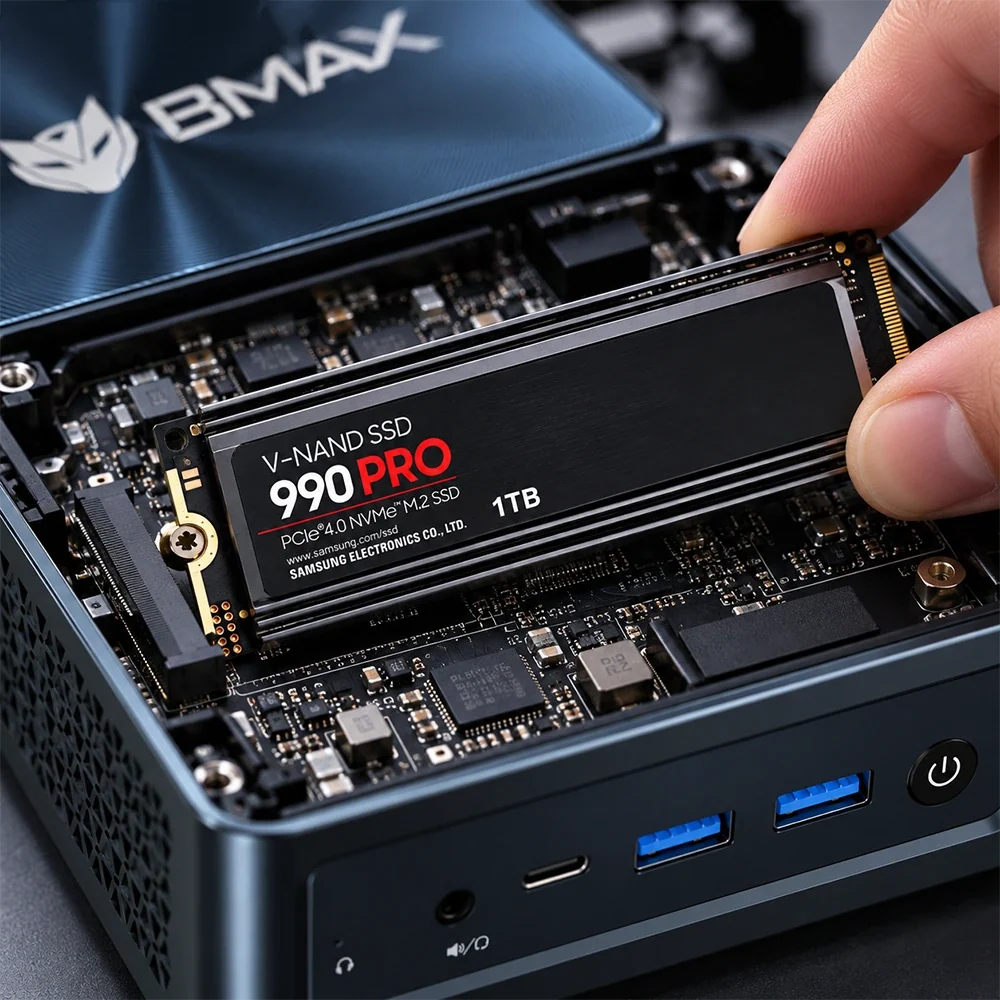
  • NVMe SSDs (Non-Volatile Memory Express): The modern standard. These are compact, stick-shaped M.2 drives that plug directly into the motherboard via the PCIe bus. Instead of being bottlenecked by older SATA speeds, NVMe drives can rocket past 3,500 MB/s (Gen 3) to over 7,000 MB/s (Gen 4).

(For a broader look at upgrading memory alongside storage, see our Mini PC RAM and Storage Upgrade Guide).


1. Speed and Performance: Is NVMe Always Better?

  • Boot and App Loading: NVMe SSDs dramatically cut down system boot times, software launch sequences, and heavy file transfers. If you work with massive 4K video files, large code compilation projects, or huge databases, an NVMe drive is non-negotiable.

  • Everyday Office Tasks: For basic web browsing, checking emails, and opening standard Word documents, the real-world difference between a SATA SSD and a Gen 3 NVMe drive is surprisingly narrow. Both feel infinitely faster than an old mechanical hard drive. However, given that almost all modern Mini PCs come with native M.2 NVMe slots, NVMe has effectively become the default choice.


2. Form Factor and Space Inside a Mini PC

Because Mini PCs are engineered to be ultra-compact, internal physical space is extremely limited:

  • M.2 NVMe (The Standard): These tiny stick-shaped drives take up virtually zero space, lying flat against the motherboard. This allows Mini PCs to maintain their paperback-book profile.

  • 2.5-inch SATA Bays: Some slightly taller or specialized Mini PC chassis include an extra internal bay for a traditional 2.5-inch SATA SSD or HDD. While slightly bulkier, these bays offer a budget-friendly way to stack massive amounts of bulk storage for movies or archives.

(To understand how form factors affect your overall purchase, check out our 2026 Mini PC Buying Guide).


3. Thermal Considerations in Compact PCs

Because NVMe drives can transfer data at blinding speeds, they also generate considerable heat. Inside a tightly packed Mini PC chassis, an uncooled high-end NVMe drive can hit thermal limits quickly and trigger thermal throttling (slowing down transfer speeds to cool off).

This is why choosing a balanced mid-tier NVMe drive—or ensuring your Mini PC features proper internal airflow and a graphene heat spreader—is often smarter than buying the absolute fastest, most expensive drive on the market.


Which Storage Should You Choose?

  • Choose an NVMe SSD if: You want the fastest possible system performance, quick boot times, instant app launching, and future-proof responsiveness for multitasking, programming, and media creation. (This is what comes pre-installed in almost all modern Mini PCs).

  • Choose a SATA SSD (or secondary 2.5-inch drive) if: You are looking for cheap, high-capacity secondary storage to archive old files, photos, or movies without breaking the bank.


Conclusion

When configuring your Mini PC, storage speed directly dictates how snappy your day-to-day computing experience feels. While SATA SSDs paved the way for modern solid-state reliability, M.2 NVMe SSDs are the undisputed king of performance, offering the blazing-fast speeds modern workflows demand in a package small enough to fit inside a pocket.

Ready to find a fast, reliable compact computer equipped with high-speed NVMe storage? Explore the BMAX Mini PC collection to discover high-performance systems built for seamless speed and reliability.


Frequently Asked Questions (FAQ)

Q: Can I use both NVMe and SATA SSDs in a Mini PC?
A: It depends on the specific model. Many modern Mini PCs feature an M.2 slot for an NVMe SSD, and some slightly larger models also include a secondary 2.5-inch SATA bay, allowing you to use both types of storage simultaneously.

Q: Do NVMe SSDs make a Mini PC faster than SATA SSDs?
A: Yes. NVMe SSDs offer significantly higher read and write speeds compared to SATA SSDs, resulting in noticeably faster file transfers, quicker application loading, and snappier overall system responsiveness.

Q: Are Mini PC storage drives upgradeable?
A: In most cases, yes! Many Mini PCs allow you to easily unscrew the bottom chassis and upgrade or replace the M.2 NVMe SSD with a higher-capacity drive as your storage needs grow. Always check your specific model's specifications first.

Q: Why does my Mini PC storage get hot?
A: High-speed NVMe SSDs transfer data so fast that they naturally generate heat. In a compact Mini PC chassis, ensuring good internal airflow or using a small thermal pad/heatsink helps keep temperatures stable.

Leave a comment

Please note, comments need to be approved before they are published.