Most trading-PC advice is about speed. Buy the fastest CPU, the most cores, the biggest GPU. Then the trader sits down, opens a second chart, and discovers the machine only has three video outputs.
A trading desk is not a gaming rig. It is a display problem, a memory problem and an uptime problem, in that order. The processor matters far less than the number of screens you can drive and the amount of RAM left over when your platform has been open for eight hours.
Here is what actually constrains a mini PC trading setup in 2026, which models clear the bar, and where the money is better spent.
Key takeaways
- Every model here tops out at three displays. The two budget models stop at two, because they only have HDMI.
- A trading stack uses roughly 15 GB: Windows, the platform, a browser and a few tools. 8 GB only for browser-based platforms, 16 GB is the sweet spot, 24 GB is the safe choice.
- Every model in this guide uses soldered LPDDR5. You pick the capacity at checkout, because it cannot be added later.
- Three 20 W monitors draw 60 W, more than any mini PC in the range. Screens decide the electricity bill.
- Latency is decided by your ISP and broker, not by the CPU. A 1 GbE port is enough; do not pay extra for 2.5 GbE on latency grounds.
In this guide
Screens come first

Almost every modern mini PC exposes three display outputs: HDMI, DisplayPort and USB-C with DisplayPort alt mode. That is three screens without any adapter.
Three is the maximum BMAX specifies for every model in this guide. The two budget models top out at two, because they only have HDMI ports — there is no USB-C or DisplayPort to split.
Adding a fourth screen is possible, but you are outside the spec sheet, and it is worth knowing why:
- DisplayPort MST hub. Splits one DP or USB-C output into two. It often works, but it is not a supported configuration — bandwidth is shared, and behaviour varies by hub and firmware. Test it before you build a desk around one.
- USB DisplayLink adapter. A small USB device with its own driver that adds a screen over USB. It works reliably, but the image is software-composited, so it suits static content — news, positions, a watchlist — not a chart you are clicking through during the open.
Our advice: plan the desk around three screens. If you genuinely need a fourth, put the slowest content on it and use DisplayLink rather than chaining adapters.
A cheaper alternative: if you already have two monitors and are considering a third, a single 32-inch 1440p screen often replaces two 24-inch panels for charting. One cable, no hub, less desk clutter. Screen count is a habit, not a requirement.
How much RAM

Trading platforms are memory-hungry in a specific way: they hold years of chart history, tick data and order books in memory, and they do not give it back gracefully.
The rough budget for a Windows desk with one platform, a browser and a couple of tools open lands around 15 GB. Add a second platform, a Discord, or a 20-tab research browser and you are at 20 GB.
That has a direct consequence for buying, because each model is fixed at one tier:
- 8 GB (B3 Pro, B3 Turbo) — browser-based platforms only.
- 12 GB (B7A Plus) — one desktop platform, workable but tight.
- 16 GB (B11 Pro) — one platform plus a browser. The sweet spot.
- 24 GB (B12 Power) — two platforms, heavy charting or backtesting.
Every model in this guide uses soldered LPDDR5 — fast and efficient, but fixed for the life of the machine. There is no aftermarket upgrade and no spare slot. If there is any chance you will run two platforms, buy 24 GB now. It is the difference between a machine that lasts five years and one that needs replacing in two.
Buying advice: browser-based platforms fit in 8 GB (B3 Turbo). One desktop platform plus a browser is workable at 12 GB (B7A Plus) and comfortable at 16 GB (B11 Pro). Two platforms, heavy charting or backtesting needs 24 GB (B12 Power). Do not trade memory for a faster chip — the faster chip will feel old long before the extra RAM does.
How much CPU
Less than the marketing suggests. Day trading is not a compute-heavy workload: the platform renders charts and processes a data feed. Single-core responsiveness matters — menus, chart redraws, order tickets — but any modern 6-core chip is already far past the point where the CPU is the bottleneck.
What you actually notice:
- Single-core speed for UI responsiveness, especially with many charts open.
- Enough cores to keep the platform smooth while a browser and a spreadsheet run alongside. Six to eight cores is plenty.
- Sustained cooling, because a trading desk runs eight to twelve hours a day and a throttling machine feels worse than a slower one that holds its clocks.
A Core i9 or Core Ultra 9 is not necessary for trading. It is necessary if the same machine also renders video or runs local models. Buying a 45 W chip for charting means more heat and more fan noise in the room where you sit all day.
Network and latency
This is where traders spend money in the wrong place.
Order latency is dominated by your internet path and your broker's infrastructure — typically tens of milliseconds — not by the computer. A mini PC's network port contributes microseconds. So:
- Use Ethernet, not Wi-Fi. Not for throughput, for consistency. Wi-Fi jitter is the thing that turns a 20 ms connection into a 200 ms one at the wrong moment.
- 1 GbE is enough. Two models here have 2.5 GbE, which is useful if you also run a NAS, but it will not make your orders faster.
- Skip the VPN unless you need it. A VPN adds a hop and latency. If your broker requires one, choose the nearest endpoint.
- Wired peripherals. A wireless mouse that sleeps is a trading hazard. Use a wired mouse or disable USB selective suspend.
Power and heat

A three-screen desk running 24/7 uses about 72 W with a mini PC and 115 W with a tower. At US average rates that is $111 versus $176 a year.
Notice where the watts go. The mini PC contributes 12 W; the monitors contribute 60 W. Monitors are 83% of the load. If running costs matter to you, buying efficient displays or turning them off when you step away saves more than choosing a smaller computer.
Heat matters for a different reason: a trading desk is occupied. A mini PC with a 15 W chip runs quietly; a 45 W chip under a long session spins its fan up. If the desk is in a bedroom or a small office, that difference is worth more than a benchmark score. Our noise and cooling guide covers what to listen for.
Running 24/7
Many traders keep the machine on overnight for pre-market prep, alerts, or an automated strategy. Four settings matter more than hardware:
- Disable sleep and hibernation for the trading user account, and set the display to turn off instead. A machine that sleeps at 3 a.m. is a machine that misses the open.
- Schedule Windows updates outside market hours, and pause them during earnings season.
- Use a UPS. A brief outage during an open position is the most expensive failure mode on this list. A 600 VA unit is enough for a mini PC and one monitor.
- Enable auto-restart after power loss in the BIOS, so the machine comes back without you.
If it runs continuously, expect the fan to be the first part that needs attention — typically around year five. That is a $15 part, not a new computer. Our guide to how long a mini PC lasts covers the rest.
Five costly mistakes
These come up again and again in trading-desk builds, and four of the five cost more than they save.
- Buying for 4K when you need pixels, not sharpness. Charts are text and lines. Two 1440p screens usually beat one 4K screen for the same money, and they are far easier to drive.
- Paying for a gaming GPU. It adds heat, noise and idle power, and does nothing for chart rendering. Integrated graphics are fine for three displays.
- Running the desk on Wi-Fi. The most common cause of "the platform froze for a second" is a wireless link, not the CPU.
- Skipping the UPS. A 600 VA unit costs less than a single bad fill. This is the cheapest insurance on the list.
- Choosing a 45 W chip for a quiet room. More heat means more fan. If the desk is where you sleep or work all day, the quieter machine is the better machine.
Four builds
| Trader type | Screens | Memory | Pick |
|---|---|---|---|
|
Browser-based, 2 screens TradingView, broker web platform, email |
2 | 8 GB | B3 Turbo — Celeron N5095, 8 GB, dual HDMI, $219.99. |
|
Active day trader, 3 screens One desktop platform, charts, news |
3 | 12 GB | B7A Plus — Ryzen 5 6600H, 12 GB, $329.99. |
|
Active trader, 3 screens, no compromises Platform + browser + a second tool |
3 | 16 GB | B11 Pro — Core Ultra 5 115U, 16 GB, 2.5GbE, $459.99. |
|
Multi-platform, 3 screens Two platforms, backtests, browser |
3 | 24 GB | B12 Power — 16 cores, 24 GB, 1 TB, $749.99. |
Two notes on the table. The 8 GB models are for browser-based platforms only — a desktop platform holding years of chart history will page to disk. And 12 GB is workable for one platform, but the 16 GB B11 Pro is the model we would actually recommend for a single-platform desk, with 24 GB reserved for multi-platform work.
Setup checklist
- Arrange displays left-to-right to match physical layout, and set the main display to the one in front of you, not the widest.
- Scale to 100% on trading monitors. Fractional scaling makes chart text blurry and costs you a little performance.
- Pin the platform's data cache to the SSD, and keep 20% of the drive free.
- Disable USB selective suspend and any "power saving" option on your mouse and keyboard.
- Set a static IP or a DHCP reservation, so your phone or backup machine can always reach it.
- Keep a second machine or a phone broker app for the day the desktop does not boot. Redundancy beats specs.
FAQ
How many monitors can a mini PC support for trading?
Three on most models, via HDMI, DisplayPort and USB-C — and that is the maximum the manufacturer specifies. The budget B3 models have only HDMI and stop at two. A fourth screen needs an MST hub or a USB DisplayLink adapter, neither of which is a supported configuration.
How much RAM do I need for trading?
8 GB handles browser-based platforms. 12 GB is workable for one desktop platform, 16 GB is comfortable for one platform plus a browser, and 24 GB is what two platforms or backtesting need. All of it is soldered, so choose the capacity at checkout.
Is a mini PC fast enough for day trading?
Yes. Trading platforms are not compute-bound; latency comes from your internet path and broker, and responsiveness comes from single-core speed and enough RAM. Any modern 6-core mini PC is sufficient.
Do I need a graphics card for trading?
No. Integrated graphics drive three 4K displays without difficulty for charting. A discrete GPU only helps if you run many high-resolution screens or do rendering on the same machine.
Is Wi-Fi good enough for trading?
It can work, but wired Ethernet is strongly preferred for consistency. Wi-Fi jitter, not bandwidth, is what causes brief freezes and delayed order tickets.
Can a mini PC run trading software 24/7?
Yes, with ventilation and a UPS. Disable sleep, schedule updates outside market hours, and enable auto-restart after power loss. Expect the fan to need replacement around year five.
Which BMAX mini PC is best for trading?
For most active traders, the B12 Power: three displays, 24 GB and 16 cores for $749.99. For a single-platform desk, the B11 Pro at 16 GB is the better value. On a budget, the B7A Plus handles three screens at 12 GB, and the B3 Turbo is enough for browser-based platforms.
Is a Mac mini better for trading?
Only if your platform runs natively on macOS and you prefer it. Most Windows-only trading tools, and multi-monitor utilities, work better on a Windows mini PC. Check your broker's supported platforms first.
The bottom line
A trading desk does not need the fastest chip you can buy. It needs enough video outputs, enough memory that the platform never pages, a wired connection, and a machine that stays awake.
Spend on screens and RAM first. Then buy the quietest machine that meets the spec, because you will sit next to it for eight hours a day. The CPU is the last thing to upgrade, not the first.
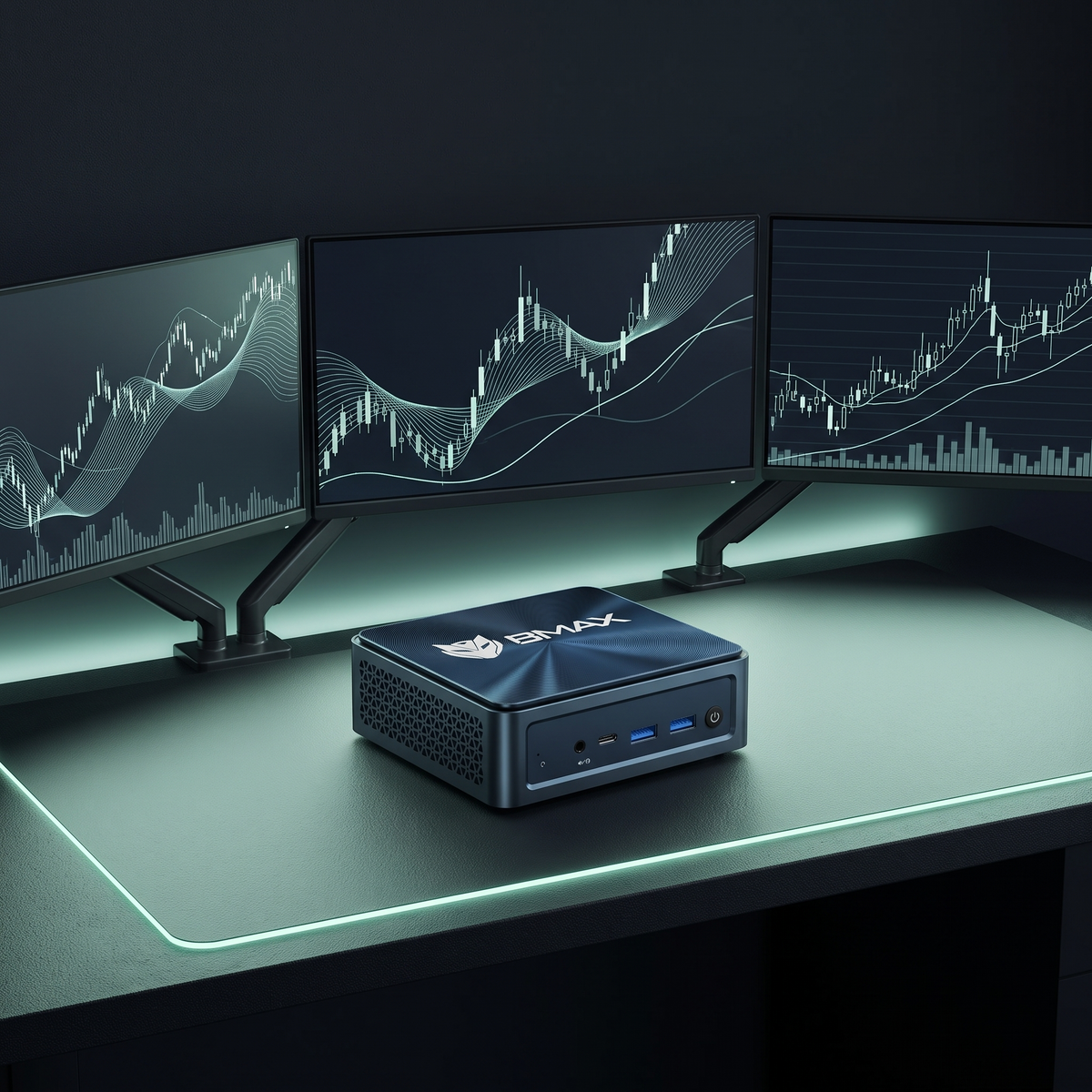
24 GB, 16 cores, three displays. The BMAX B12 Power ships with 24 GB and 1 TB — enough headroom for two platforms across three displays.
Sources
- Display outputs, memory configurations and prices: bmaxbuy.com product pages for B3 Pro, B3 Turbo, B7A Plus, B11 Pro and B12 Power, October 2026.
- Power figures: published wall measurements (B12 Power idle 12.4 W; typical tower 55 W) and 20 W per 24-inch monitor; electricity at 17.45 ¢/kWh, EIA Electric Power Monthly, January 2026.
- Memory budget: planning model for Windows 11 with one trading platform, a browser and background tools. Actual usage varies by platform, chart count and plugins.
This article is a hardware buying guide, not investment advice. Memory figures are planning estimates rather than measured benchmarks. Prices are US list prices as of October 2026.