Mini PC Guida all'aggiornamento di RAM e spazio di archiviazione: come scegliere & Aggiornamento
Aggiornare autonomamente la memoria e lo storage rappresenta il modo più economico per incrementare le prestazioni di un computer di piccole dimensioni, a patto che l'unità non sia completamente vincolata da componenti saldati in modo permanente.
Abbiamo creato questa guida per definire un quadro di riferimento chiaro e basato sul carico di lavoro. Ti aiuterà a decidere esattamente quali specifiche acquistare di serie, quando optare per un'unità barebone e come realizzare in sicurezza un assemblaggio hardware personalizzato.
(Per una panoramica più ampia su come scegliere il sistema giusto fin dall'inizio, consulta il nostro 2026
Punti chiave
-
16 GB è il nuovo standard di riferimento: 8 GB non sono sufficienti per la produttività con Windows 11, mentre 32 GB o più sono necessari solo per la virtualizzazione, il montaggio video o un utilizzo intensivo in un laboratorio domestico.
-
Le dimensioni contano: Un aggiornamento RAM per mini PC di successo richiede SO-DIMM memoria (non U-DIMM desktop standard) e gli aggiornamenti di archiviazione sono spesso limitati dalla lunghezza M.2 (e.g. , 2280 contro 2242).
-
Le temperature determinano lo stoccaggio: L'installazione di unità NVMe PCIe Gen 4 o Gen 5 ultraveloci in un mini PC senza dissipatori di calore adeguati spesso provoca un surriscaldamento che annulla il vantaggio in termini di velocità.
-
Controlla la scheda tecnica per "Saldato": Non tutti i mini PC sono aggiornabili; verificare se la memoria è LPDDR (saldata) o DDR standard (installata su zoccolo) è un passaggio fondamentale prima dell'acquisto.
Definire il carico di lavoro: collegare le specifiche ai risultati concreti.
Non bisogna mai acquistare componenti hardware senza tenere conto delle specifiche. Le esigenze hardware aumentano in modo proporzionale all'utilizzo quotidiano e scegliere i componenti più adatti al proprio flusso di lavoro previene sia spese eccessive che frustranti colli di bottiglia.
1. Consumo di uffici e media (il punto di riferimento)
Le attività informatiche di base definiscono il livello entry-level. Questo include applicazioni basate su browser, riproduzione video 4K e software Office standard. Il tuo obiettivo principale qui è una risposta fluida. I browser consumano molte risorse quando rimangono aperte decine di schede, rendendo il multitasking senza interruzioni la metrica di successo fondamentale. Il tuo sistema deve funzionare senza problemi senza dipendere da scambio del file di pagina (dove il sistema utilizza un'unità di archiviazione lenta come RAM di emergenza, con conseguente calo immediato delle prestazioni).
2. Creativo Pro Duttilità e gioco leggero (fascia media)
La fascia media richiede maggiore potenza hardware per attività come il fotoritocco in Lightroom/Photoshop, il rendering video a 1080p o i giochi leggeri che sfruttano esclusivamente la grafica integrata. I parametri di successo in questo caso si concentrano su tempi di rendering accelerati e frame rate stabili. Allocazione della memoria a doppio canale Questo incremento di prestazioni è dovuto al fatto che, mentre i computer da ufficio standard possono funzionare con configurazioni a canale singolo, i flussi di lavoro creativi richiedono una larghezza di banda a doppio canale.
3.Laboratorio domestico, virtualizzazione e intelligenza artificiale locale (il manuale completo)
(Per gli utenti che cercano la potenza di elaborazione pura, consultare la nostra guida su Prestazioni eccellenti

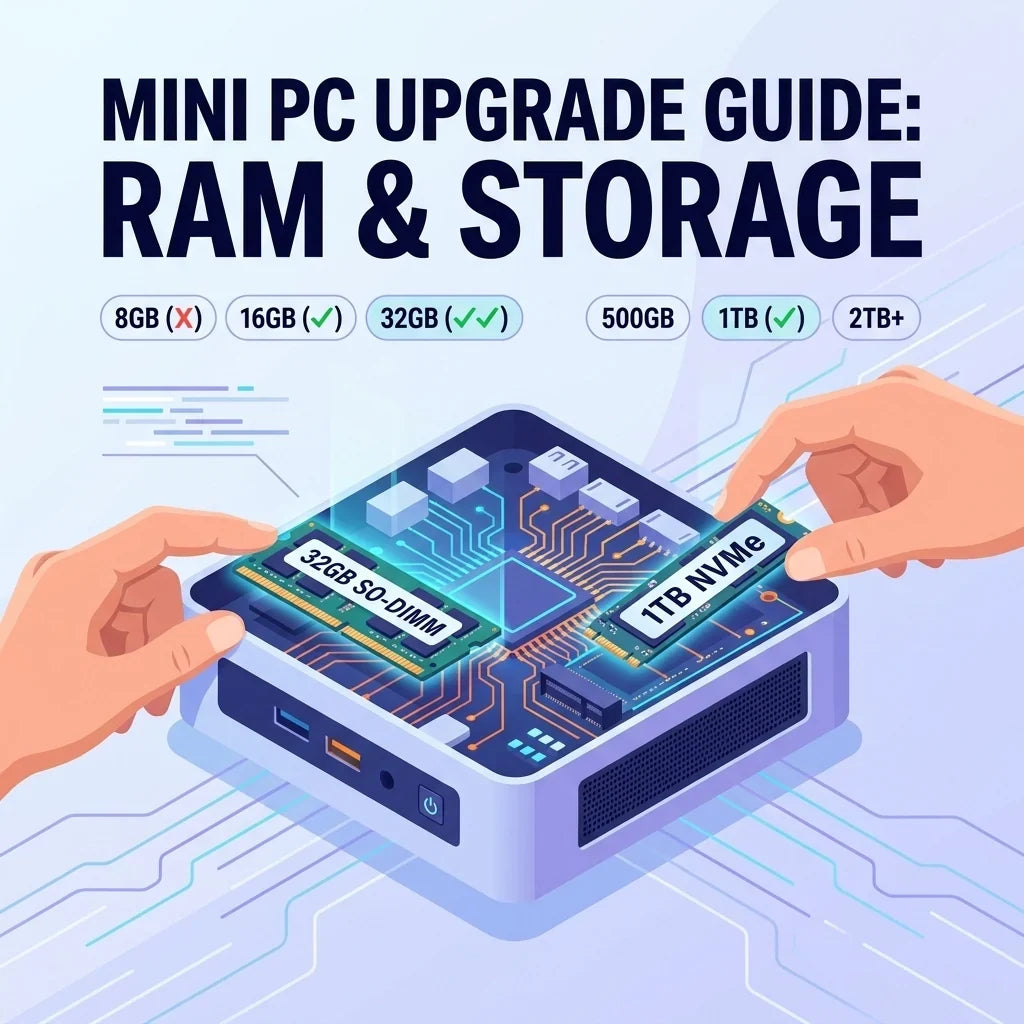
IL Mini PC Schema di aggiornamento della RAM: quanta ne serve?
L'ottimizzazione della memoria inizia con la comprensione dei requisiti di base del sistema operativo. Windows 11 riserva circa tre o quattro gigabyte solo per funzionare, e i processori grafici integrati utilizzano ulteriore memoria di sistema per l'elaborazione video.
(Per un approfondimento sulla capacità di memoria, leggi la nostra guida dedicata su Di quanta RAM hai realmente bisogno in un
Ecco come si suddividono i livelli di memoria nei carichi di lavoro moderni:
-
Capacità di 8 GB: In gran parte obsoleto per i computer principali di uso quotidiano. Consigliato solo per la segnaletica digitale monouso o per server Linux leggeri senza interfaccia grafica. Windows 11 avrà seri problemi in questi casi.
-
Capacità di 16 GB: La soluzione ideale per l'80% degli utenti.
Pro Offre ampio margine di manovra per i flussi di lavoro d'ufficio, la navigazione web intensiva e il multitasking. -
Capacità di 32 GB: Indispensabile per professionisti creativi che utilizzano intensamente le risorse di lavoro, utenti domestici con esigenze moderate e sviluppatori di software che operano in ambienti che richiedono un elevato utilizzo della memoria.
-
Capacità superiore a 64 GB: Settore di nicchia. Necessario solo per cluster di virtualizzazione estesi o per testare localmente modelli di intelligenza artificiale.
Il mandato del doppio canale
Corri sempre due stick di memoria abbinati Invece di un singolo modulo ad alta capacità, l'installazione di due moduli da 8 GB offre prestazioni nettamente superiori rispetto a un singolo modulo da 16 GB, poiché le configurazioni dual-channel raddoppiano la larghezza di banda della memoria, migliorando drasticamente la grafica integrata e la reattività complessiva del sistema.
Scalare lo storage: capacità, velocità e problematiche termiche
Lo spazio di archiviazione determina quante applicazioni, giochi e file il computer può contenere, nonché la velocità di avvio.
-
Capacità di 500 GB: Ideale per chi predilige il cloud. Gestisce senza problemi installazioni di base del sistema operativo e app di uso quotidiano, ma ha difficoltà con i giochi moderni più complessi.
-
Capacità di 1 TB: La soluzione standard consigliata dalla maggior parte degli acquirenti. Offre spazio sufficiente per software, applicazioni e archiviazione di file locali.
-
Capacità superiore a 2 TB: Indispensabile per le librerie multimediali locali, gli operatori di server Plex, i montatori video e le grandi librerie di giochi.
La trappola termica di stoccaggio
Molti utenti spendono più del dovuto per unità NVMe PCIe Gen 4 o Gen 5 di fascia alta. Consigliamo di adottare un atteggiamento scettico nei confronti delle soluzioni di archiviazione ultraveloci nei computer ultracompatti.I piccoli chassis intrappolano rapidamente il calore e le unità di fascia alta raggiungono inevitabilmente i limiti termici. Il controller dell'unità risponde tramite limitazione della velocità di trasferimento fino ai livelli della generazione 3 per evitare danni all'hardware, che renderebbero la tua costosa unità non più veloce di un'opzione di fascia media.
Un'unità NVMe di quarta generazione di fascia media, affidabile e a basso consumo energetico, abbinata a un dissipatore di calore in grafene, rappresenta la soluzione più intelligente e realistica.

Compatibilità hardware pre-aggiornamento e rischi di implementazione
Non è possibile aggiornare tutti i computer di piccole dimensioni presenti sul mercato. I produttori spesso limitano le funzionalità dei componenti per risparmiare spazio o ridurre i costi.
1. Identificazione dei fattori che impediscono l'aggiornamento
-
Tipo di RAM (SO-DIMM vs. LPDDR): SO-DIMM si riferisce alla memoria standard per laptop con zoccolo, facilmente aggiornabile. I chip di memoria LPDDR, invece, sono saldati in modo permanente direttamente sulla scheda madre. Non è possibile aggiornare i sistemi LPDDR. Controlla sempre le schede tecniche per termini come "LPDDR5".
-
Fattori di forma di archiviazione: Le unità M.2 NVMe sono disponibili in diverse lunghezze. Standard M.2 2280 Le unità offrono i prezzi e la disponibilità migliori, mentre i computer di dimensioni ridotte spesso richiedono dimensioni fisicamente inferiori. M.2 2242 unità. Alcuni modelli di chassis leggermente più alti dispongono anche di un secondo alloggiamento SATA da 2,5 pollici.
2. Rischi di implementazione
Aprire un computer imballato in modo compatto comporta dei rischi fisici. I produttori spesso utilizzano delicati cavi a nastro per le antenne Wi-Fi o fissano i connettori SATA direttamente alla piastra inferiore rimovibile. Tirare la piastra con troppa forza può danneggiare questi fragili cavi a nastro. Inoltre, le piccole viti del case si spanano facilmente: utilizzare sempre cacciaviti precisi e della misura corretta.
Struttura base vs. struttura prefabbricata: analisi costi-benefici
Gli acquirenti generalmente scelgono tra due percorsi: acquistare un sistema completamente assemblato o un unità base (che comprende processore, scheda madre e chassis, ma zero memoria e spazio di archiviazione).
Acquistare un PC barebone fai-da-te è economicamente vantaggioso quando i produttori applicano prezzi esorbitanti per gli aggiornamenti di RAM e storage di fabbrica. Se un produttore richiede un sovrapprezzo elevato per passare da 16 GB a 32 GB, acquistare un PC barebone e aggiungere autonomamente i componenti aftermarket vi permetterà di risparmiare notevolmente.
L'eccezione: Gli acquirenti aziendali e i responsabili delle flotte di computer per ufficio dovrebbero generalmente evitare i sistemi barebone. La predisposizione immediata e il supporto di garanzia unificato consentono di risparmiare tempo prezioso per l'implementazione IT, un vantaggio che supera il risparmio sull'hardware.
Conclusione
Verificate sempre che il modello scelto utilizzi slot SO-DIMM con zoccolo anziché chip di memoria saldati. (Per ulteriori approfondimenti sul confronto dei fattori di forma, leggi la nostra guida su
Domande frequenti (FAQ)
D: L'aggiornamento della RAM di un mini PC invalida la garanzia?
R: Dipende dal produttore e dalle leggi locali a tutela dei consumatori. Molti marchi progettano i loro chassis per facilitare gli aggiornamenti da parte dell'utente, anche se la rimozione del sigillo di fabbrica potrebbe occasionalmente causare ritardi nell'assistenza. Verifica sempre i termini di garanzia ufficiali.
D: Posso combinare RAM di marche o capacità diverse in un mini PC?
A: Dovresti evitare di mescolare marche, capacità o velocità diverse. La memoria non compatibile costringe il sistema a ridurre la frequenza alla velocità minima comune e può causare instabilità del sistema e schermate blu. Acquista sempre kit da due moduli di memoria identici.
D: Perché la RAM che ho appena installato funziona a una velocità inferiore?
A: I computer di piccole dimensioni spesso non dispongono delle impostazioni BIOS avanzate necessarie per abilitare i profili di overclock XMP o EXPO. Di conseguenza, le memorie ad alta velocità per il gaming utilizzano di default i profili JEDEC standard, più lenti. Acquista memorie che supportino nativamente la velocità desiderata tramite JEDEC.
D: Posso aggiungere un secondo disco rigido a un mini PC?
A: Molti modelli leggermente più alti includono un alloggiamento SATA da 2,5 pollici o uno slot M.2 NVMe secondario al loro interno. Tuttavia, i modelli ultrasottili di solito supportano un solo disco. Controlla le specifiche del layout del tuo modello prima di acquistare un'unità di archiviazione secondaria.