A signage player is the least glamorous computer you will ever buy. It sits behind a screen, runs the same slideshow for three years, and nobody thinks about it until it stops.
That is exactly why the purchase decision is different from a normal PC. It runs 24/7, it is often in a hot or dusty place, nobody is there to click "restart", and the cost per screen matters more than the cost per unit. A $550 commercial media player and a $200 mini PC do the same job — one of them just costs three times as much over its life.
Here is what signage and POS actually demand, what the real three-year cost looks like, and which settings keep a cheap player running.
Key takeaways
- Signage runs 8,760 hours a year, so power draw is a real line item: $9 a year for a 6 W mini PC versus $84 for a tower.
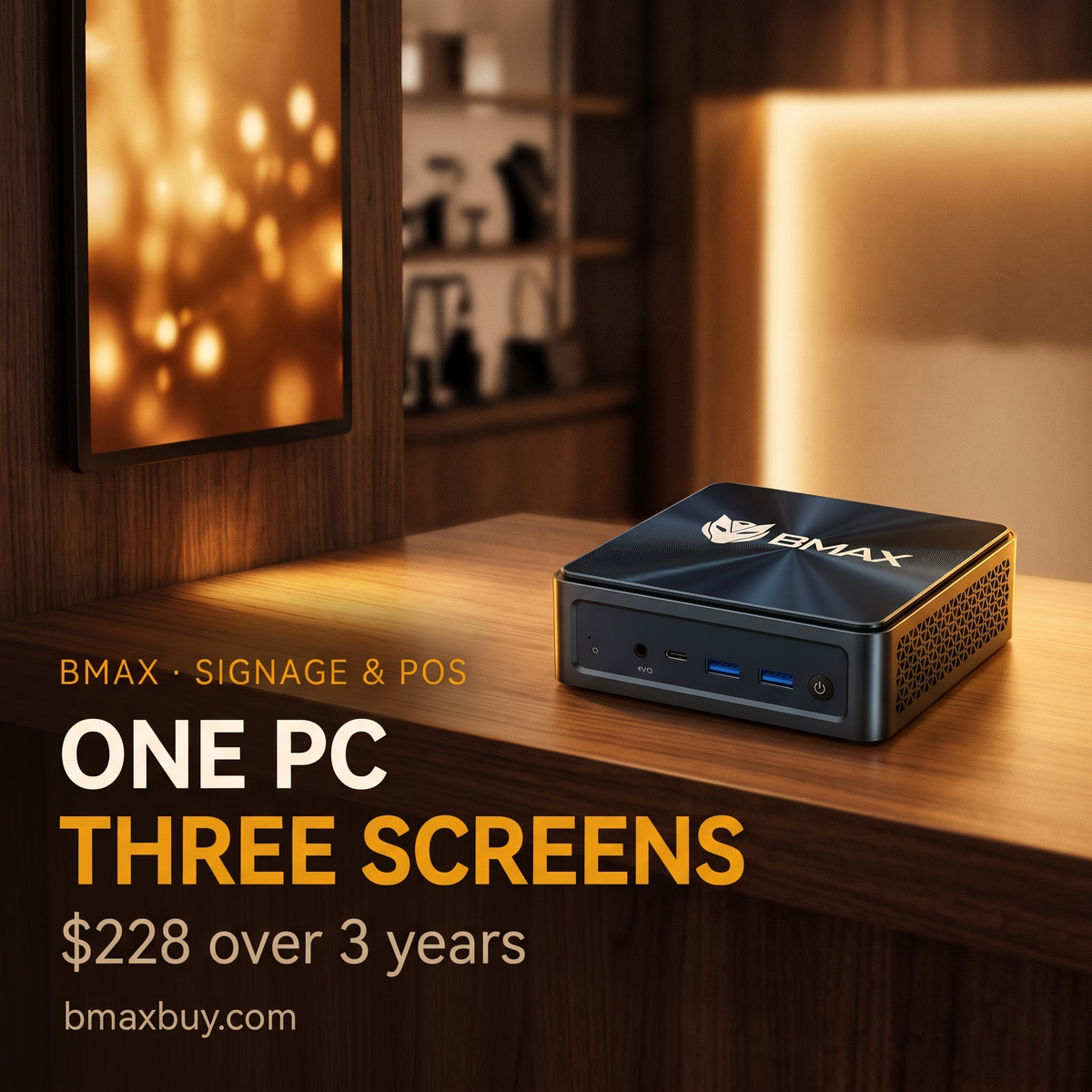
- Three-year cost per screen: $228 for a $200 mini PC, $619 for a commercial player, $952 for a tower.
- One PC with three outputs drives three screens for $499 over three years — a third of three commercial players.
- The B3 series has two HDMI outputs; the B11 Pro and B12 Power have three.
- The settings matter more than the hardware: disable sleep, auto-start after power loss, block feature updates.
In this guide
What signage demands
Five requirements separate a signage PC from a desktop:
- Unattended operation. It must boot by itself after a power cut, and never wait for a login screen.
- No sleep, no updates at the wrong time. A machine that reboots during opening hours is worse than one that is slightly out of date.
- Remote management. You need to push new content and restart it without driving to the site.
- A mount. VESA holes on the back of the screen, or a shelf. Mini PCs are the only category that reliably disappears behind a display.
- Heat tolerance. A screen in a window or above a till runs hot. Fanless or low-power hardware survives where a gaming PC throttles.
Three-year cost

The numbers are blunt. A $200 mini PC costs about $228 to own for three years including power. A $550 commercial player costs $619. A tower costs $952, mostly because it burns 55 W doing nothing.
The commercial player is not a scam. What you are paying for is a managed device: a content management subscription, a warranty that covers replacement, and a box that is locked down so staff cannot break it. If you need those things and do not want to run them yourself, the premium can be worth it.
If you are comfortable managing a Windows machine remotely — and most small businesses already are — the mini PC does the same job for a third of the cost.
The Android stick caveat: at about $82 over three years it is the cheapest option on the chart. It is also the one most likely to fail in a hot enclosure, to struggle with 4K video, and to have no remote management beyond reinstalling an app. Fine for a single menu board; not what you put in ten stores.
One PC, three screens

Most signage installations assume one player per screen. That is a habit inherited from commercial players, which usually have a single output.
A mini PC can drive two or three screens from one box. That changes the economics: three commercial players cost about $1,856 over three years, three mini PCs about $683, and one B11 Pro driving all three about $499.
The trade-off is that all three screens show the same content or a single extended desktop. For a video wall, a menu board above a counter, or a window display with three panels, that is exactly what you want. For three independent zones playing different content, you need three players.
Power and heat

A mini PC showing a slideshow draws around 6 W. A tower doing the same thing draws 55 W, because the parts that make it fast are still powered and mostly idle.
Across a year that is $9 versus $84. Across ten locations, the tower costs an extra $750 a year to display the same images — which is more than the mini PCs themselves.
Heat matters for a different reason. Low-power hardware produces less of it, so the enclosure stays cooler, the fan runs less, and the machine lasts longer in the place where signage actually lives: behind a hot screen or above a till.
Windows, Android or a player
Three ecosystems, and the choice usually follows your content management:
- Windows mini PC — runs a kiosk browser, a native signage app, or a PowerPoint in presentation mode. The advantage is that anything runs, including the POS software on the same machine. The disadvantage is that Windows needs locking down.
- Android player or stick — cheapest, app-based, managed through the vendor's cloud. Limited local storage and weaker 4K handling.
- Commercial signage player — a closed box with a subscription. You pay for the management layer and the warranty.
For a single screen showing a menu or a promo loop, an Android stick is genuinely fine. For a multi-screen install, a POS terminal that doubles as a display, or anything that must run for years without a subscription, a Windows mini PC is the more durable choice.
POS specifics
Point-of-sale is a stricter version of the same problem, because it is transactional: if the machine freezes, you cannot take money.
- Software compatibility comes first. A lot of POS suites are Windows-only. Check yours before buying anything.
- Peripherals are the risk. Receipt printers, cash drawers, barcode scanners and card readers all connect over USB or serial, and each one needs a driver that works on your OS version.
- Two screens help. One for the operator, one facing the customer. The B3 series handles this with its dual HDMI outputs; the B11 Pro adds a third for a kitchen or back-office display.
- Offline mode matters. Card payments need the internet, but the till should keep working when it drops.
A practical setup: a B3 Turbo with 8 GB runs a Windows POS suite plus a customer-facing display, and draws about 6 W. Add a small UPS so a brief outage does not corrupt the till session, and set the BIOS to power on after AC loss.
Reliability settings
These eight settings matter more than the spec sheet:
- Disable sleep and hibernate — on a dedicated signage account, not just the current user.
- Enable auto power-on after AC loss in the BIOS. This single setting prevents most "the screen is black" callouts.
- Auto-login to a locked-down account that launches the player full screen.
- Defer feature updates and set active hours so reboots never land during opening hours.
- Disable USB selective suspend so peripherals do not drop off.
- Remote access via a tool you trust, with two-factor authentication and no open RDP port.
- VESA mount with airflow — never enclose the machine in a sealed box.
- Clean the intake every six months. Retail environments are dusty; a clogged fan is the most common failure.
Which BMAX fits
| Deployment | Pick | Why |
|---|---|---|
| Single screen: menu board, window promo, reception | B3 Pro — 8 GB, $199.99 | 6 W idle, dual HDMI, VESA-friendly. The cheapest sensible player. |
| POS till plus a customer-facing display | B3 Turbo — 8 GB, $219.99 | Four cores for the POS app, dual HDMI for the second screen, dual M.2 for local content. |
| Three screens from one box, or 4K at 120 Hz | B11 Pro — 16 GB, $459.99 | HDMI 2.1, DP 2.1 and USB-C give three outputs; 16 GB covers a POS app plus a browser. |
| Video wall with heavy 4K content | B12 Power — 24 GB, $749.99 | 16 cores and Arc graphics for multi-stream 4K playback; 2.5 GbE for networked content. |
Two notes. Memory is soldered on all of them, so buy the tier you need once. And if the site has no network, plan how you will push content updates — a USB stick and a scheduled task is a legitimate workflow, not a hack.
FAQ
Can a mini PC run digital signage?
Yes. A Windows mini PC runs a kiosk browser or a signage app and drives one to three screens, drawing around 6 W. It is the cheapest reliable option if you are willing to manage the machine yourself.
How much does a signage player cost to run 24/7?
About $9 a year for a 6 W mini PC at US average rates, against roughly $84 for a desktop tower. Over three years, including hardware, a $200 mini PC totals about $228.
Can one mini PC drive multiple screens?
Yes, up to its number of outputs. The B3 series has two HDMI ports; the B11 Pro and B12 Power have three outputs (HDMI, DisplayPort, USB-C), so they can drive three screens from one box.
Is a mini PC good for POS?
Yes, if your POS software runs on Windows. Check driver support for your receipt printer, cash drawer and card reader first — peripherals are the usual obstacle, not the computer.
Windows or Android for signage?
Android is cheaper and simpler for one screen with cloud-managed content. Windows is better for multi-screen installs, 4K video, local content, and any site that also needs POS software.
How do I stop the screen from going black?
Disable sleep and hibernate, enable auto power-on after AC loss in the BIOS, and set a scheduled task to restart the player at a fixed time each night. Most black-screen callouts are one of those three.
Do I need a UPS for signage?
For POS, yes — an unclean shutdown can corrupt the till session. For a display, it is optional unless the site has unstable power, in which case a small UPS also protects the player from repeated cold boots.
Which BMAX mini PC is best for signage?
The B3 Pro for a single screen, the B3 Turbo for a POS till with a customer display, and the B11 Pro when one machine must drive three screens.
The bottom line
Signage is a boring purchase done badly more often than any other computer category. The hardware is the cheap part; the cost is in the callouts, the subscriptions, and the electricity of a machine that was never designed to run all day.
A $200 mini PC with 6 W idle, two or three outputs and a VESA mount does the job. Spend the saved money on a UPS and a spare unit — redundancy fixes more problems than a faster processor ever will.
From $199.99, 6 W idle, 24/7 ready. The BMAX B3 series is built for the job nobody notices — a screen that stays on.
Sources
- Power figures: published wall measurements for BMAX mini PCs; typical values for commercial signage players, Android TV sticks and desktop towers; electricity at 17.45 ¢/kWh, EIA Electric Power Monthly, January 2026.
- Display outputs: bmaxbuy.com product pages for B3 Pro (dual HDMI 2.0), B3 Turbo (dual HDMI 2.0), B11 Pro (HDMI 2.1, DP 2.1, USB-C) and B12 Power (HDMI 2.1, DP 2.1, USB-C), October 2026.
- Cost model: hardware plus three years of 24/7 electricity at the rates above; screens, mounts and content-management subscriptions excluded.
Costs are estimates for planning, not quotes. Commercial player and Android stick prices vary widely by region and subscription. All BMAX mini PCs in this guide use soldered memory.